
This guide will help you on how to upload your saved world to your server
Look for your saved data in your local files:
C:\Users\<Windows UserName>\AppData\Local\R5\Saved\SaveProfiles\<Your Steam ID>\RocksDB\<Game Version>\Worlds\<World ID>
Save a copy and upload it to your server.
We recommend using FTP with this method for faster transfer.
You can check our FTP guide here (Click here)
-
Step 1:
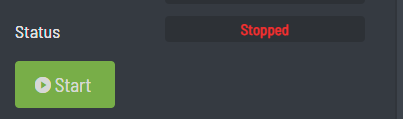
Make sure that your server is not running.
Step 2:
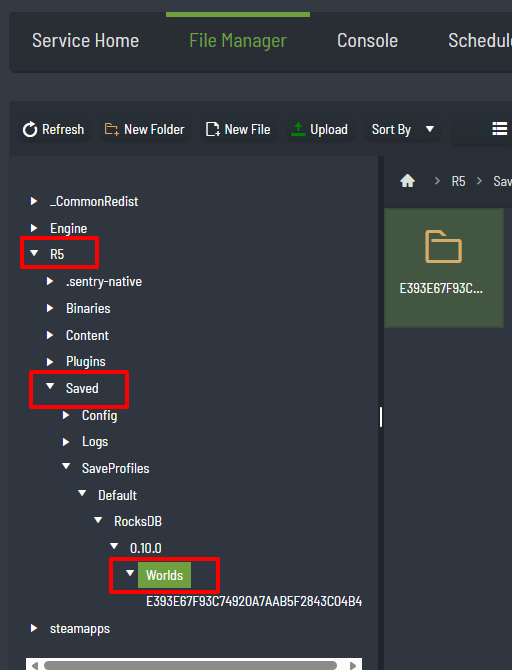
Upload your save game folder and replace any existing saved folder.
Example: E393E67F93C74920A7AAB5F2843C04B4
This goes into this folder on your server:
R5\Saved\SaveProfiles\Default\RocksDB\0.10.0\Worlds\
Step 3:
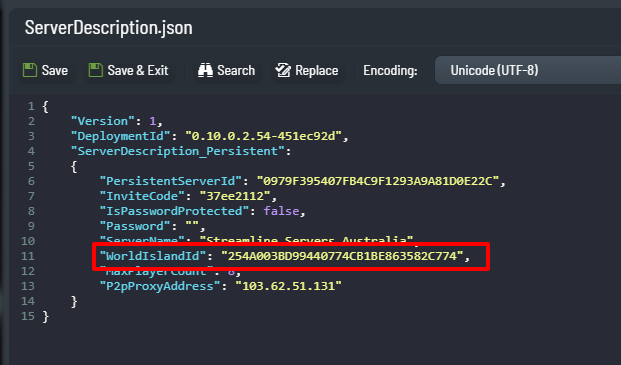
After uploading your data to the server, you just need to tell it to use that save file.
This is done by editing the ServerDescription.json file in the Configuration Files section of your control panel.
Example:
From - 254A003BD99440774CB1BE863582C774
To - E393E67F93C74920A7AAB5F2843C04B4
Step 4:
SAVE & EXIT and START your server!